
If you’re running a Shopify store in Australia, getting your GST settings wrong isn’t just an accounting headache — it can mean undercharging customers, misfiling your BAS, or paying 10% more on every Shopify invoice than you should. I’ve seen stores run for months without this configured correctly, and the cleanup is always painful. This guide walks you through every step of the Shopify GST setup Australia process, from registration thresholds to BAS reporting, so you can get it right the first time.
Do You Actually Need to Register for GST?
Under ATO GST registration rules, you must register once your annual GST turnover reaches or is expected to reach AUD $75,000. One important clarification that trips up a lot of new sellers: GST turnover means your total revenue, not your profit. If you’re selling $75,000 worth of products but only making $10,000 after costs, you still need to register based on that $75,000 top line.
Once registered, you charge 10% GST on most goods and services sold to Australian customers, collect it on behalf of the ATO, and remit it when you lodge your Business Activity Statement (BAS). Registration below the threshold is optional, but many sellers do it early for the credibility it signals to wholesale buyers who want a valid tax invoice.
If you’re not yet registered — or you’re unsure — register for GST directly with the ATO before touching your Shopify settings.
Shopify GST Setup Australia: Step-by-Step Configuration
Here’s the exact path through your Shopify admin. The interface has evolved across Shopify versions, so I’ll call out where things can sit in slightly different places.
Step 1: Open Tax Settings
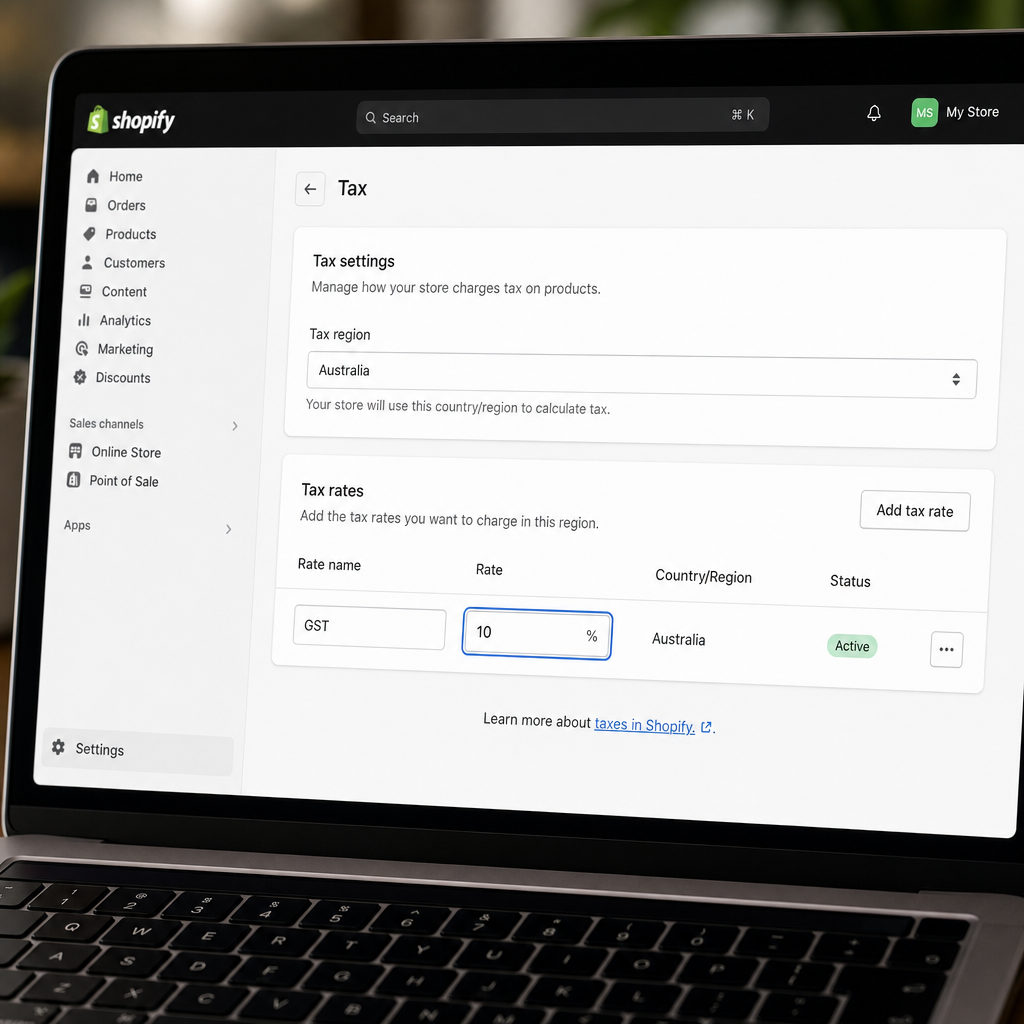
In your Shopify admin, go to Settings > Taxes and duties. You’ll see a list of countries. Click Australia.
Step 2: Set the Federal Tax Rate
Under the Australia tax region, you’ll see a field for the country tax rate. Set this to 10%. This is Australia’s flat GST rate — it doesn’t vary by state the way US sales tax does, which makes Australian tax settings far simpler to configure.
Step 3: Configure Regional Taxes
Below the federal rate, Shopify shows state/territory fields. For Australia, the correct setting is “Added to 10% federal tax” — not a separate rate on top. Australian states don’t levy their own sales taxes; the 10% is national. Make sure none of the state fields have been accidentally set to an additional percentage.
Step 4: Choose Tax-Inclusive or Tax-Exclusive Pricing
This is where many Australian sellers make their first big decision. You have two options:
- Tax-inclusive (recommended for most B2C stores): The price shown to customers already includes GST. A product listed at $110 contains $10 GST. Australian consumer law strongly favours showing GST-inclusive prices to retail customers — it’s what shoppers expect.
- Tax-exclusive: GST is added at checkout. This is more common for B2B stores where buyers want to see the pre-GST price and claim the input tax credit themselves.
To set tax-inclusive pricing, tick the option “All prices include tax” within the Australia tax region settings. When this is on, Shopify displays your listed price as the final price and calculates the GST component internally for your reports.
UI note: In newer Shopify versions (late 2024 and beyond), you may also need to check the tax toggle at the variant level for each product, not just globally. If a product isn’t charging GST despite your global setting, open the product, scroll to the variant, and confirm “Charge tax on this product” is ticked.
Step 5: Save and Verify
Save your settings, then go to your storefront and add a product to cart. Check that GST is appearing as expected — either included in the price or added at checkout, depending on your setup. Do this test before you go live, not after.

Handling GST-Free and Exempt Products in Shopify
Not everything you sell attracts GST. The ATO’s GST-free goods list covers a range of items — basic food, certain medical goods, educational materials, and more. If your store sells any of these, you need to configure tax overrides in Shopify.
Setting Up Tax Overrides for Exempt Products
In Settings > Taxes and duties > Tax overrides, you can create overrides for specific products or entire collections. Here’s the process:
- Click Add a tax override.
- Select whether the override applies to a product or a collection.
- Choose the country (Australia) and set the rate to 0%.
- Save the override.
Assign exempt products to a dedicated collection (e.g., “GST-Free Items”) to make managing overrides easier as your catalogue grows. When you add new exempt products, simply drop them into that collection and the 0% rate applies automatically.
Exported Goods: GST-Free Shipping Overseas
If you ship physical goods overseas, those exports are generally GST-free — but only if the goods leave Australia within 60 days of the buyer paying. Shopify handles this automatically for international orders when your settings are configured correctly: tax isn’t charged to overseas shipping addresses. Always verify this is working as expected in a test order to an international address before you scale.
Digital Products and Cross-Border Obligations
Digital exports — ebooks, software, online courses sold to non-Australian residents — are GST-free under Australian law. However, this is where things get more complex across borders. If you’re selling digital products to customers in the European Union, EU VAT (via the OSS scheme) is a separate obligation entirely — it is not managed through your Shopify Australia tax settings. Similarly, if you’re selling digital goods to New Zealand customers above NZ$60,000 per year, you may need to register for NZ GST separately. These international obligations sit outside your Shopify AU configuration and should be discussed with a tax adviser who handles cross-border e-commerce.
Adding Your ABN to Shopify Billing — and Claiming Input Tax Credits
This section matters more than most sellers realise, and it’s one of the most commonly misunderstood areas. When Shopify charges you for your subscription, apps, themes, and other fees, those invoices include 10% GST.
By adding your Australian Business Number (ABN) to your Shopify billing profile, Shopify issues you a valid tax invoice. With a valid tax invoice in hand, you can claim the GST on those Shopify fees back as an Input Tax Credit (ITC) when you lodge your BAS. This is how GST works for registered businesses — you collect GST on sales (your Output Tax), you claim back GST you’ve paid on business expenses (your Input Tax Credits), and you remit the difference to the ATO.
To add your ABN:
- Go to Settings > Billing in your Shopify admin.
- Find the billing profile section and enter your ABN.
- Save. Future invoices from Shopify will include your ABN and be formatted as valid tax invoices for BAS purposes.
On a $39/month Basic Shopify plan, that’s $3.90 in GST you can claim back each month. On higher plans with apps, themes, and transaction fees, the ITCs add up. Don’t leave money on the table.
BAS Reporting: Finding Your GST Figures in Shopify
Every quarter (or month, depending on your registration), you’ll lodge a Business Activity Statement with the ATO reporting the GST you collected and the ITCs you’re claiming. Shopify doesn’t lodge your BAS for you, but it gives you the figures you need.
Go to Reports > Finances > Taxes in your Shopify admin. This report shows GST collected by tax rate and by period. The figure you’re looking for for your BAS is the total GST collected on Australian sales — this goes into Label 1A on your BAS form. Cross-check this against your accounting software before submitting.
A few things to watch when pulling these figures:
- Shopify’s tax reports show collected GST, not adjusted for refunds. Pull your refunds report separately and net them out.
- If you use Shopify Payments, there’s a separate fees report — the GST on those fees is an Input Tax Credit, provided you have a valid tax invoice (which your ABN in the billing profile handles).
- Third-party payment gateway fees (e.g., PayPal, Stripe) each issue their own invoices — collect those separately for your ITC claims.
Integrating Shopify with Xero or MYOB for Automated GST
Manually pulling reports from Shopify for every BAS period is time-consuming and error-prone. Connecting Shopify to accounting software automates the heavy lifting — every sale, refund, fee, and payment flows through to your accounts in real time.
Shopify + Xero
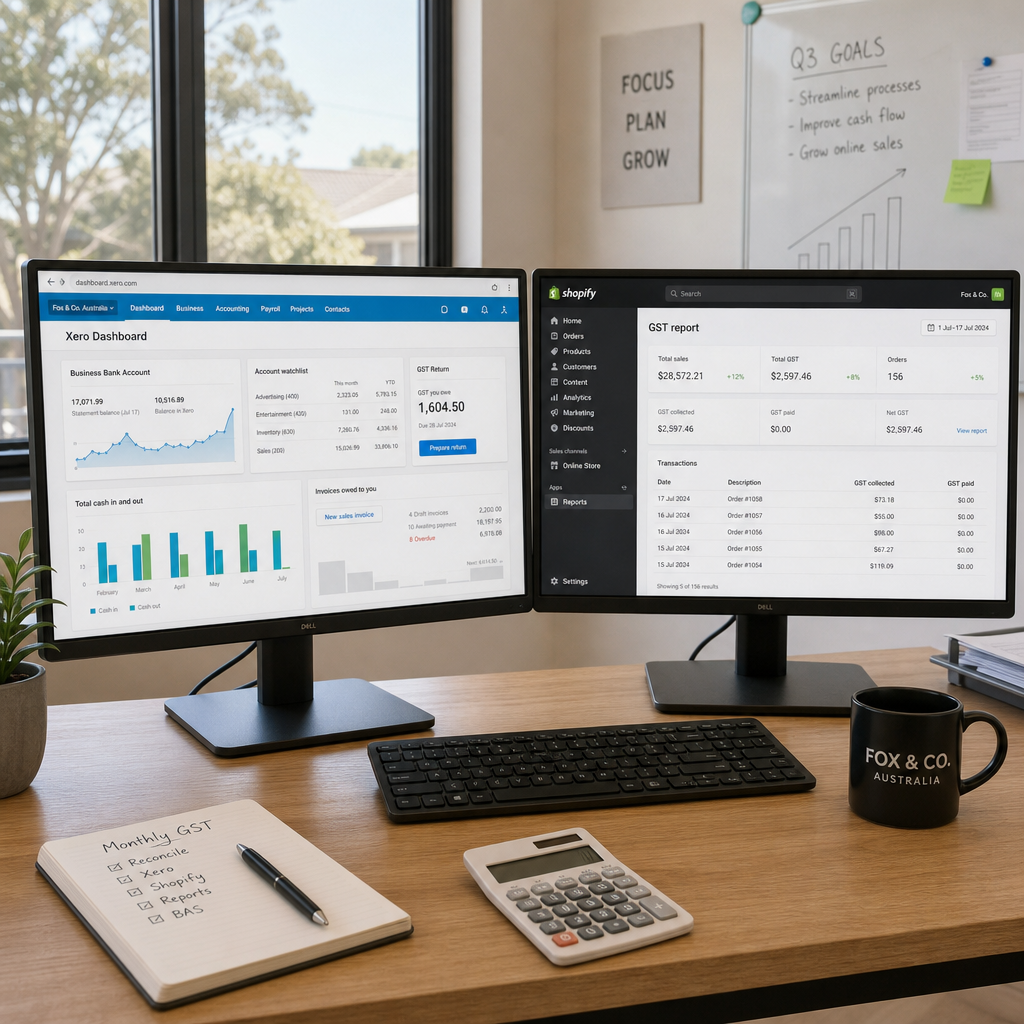
Shopify’s Xero integration (available via the Xero app on the Shopify App Store) syncs daily sales summaries, refunds, and fees directly into Xero. In Xero, each line item is mapped to the correct GST treatment — taxable sales, GST-free sales, and GST on expenses. When BAS time comes, Xero’s GST return report pre-populates Labels 1A and 1B from your synced data. For most Australian Shopify sellers, this is the fastest path to accurate BAS lodgement.
One setup step that’s easy to miss: in Xero, make sure your Shopify sales account is mapped to the correct GST rate (“GST on Income”) and your Shopify fees account is mapped to “GST on Expenses.” Mismatched tax codes are the most common cause of BAS errors in Xero.
Shopify + MYOB
MYOB AccountRight and MYOB Business both support Shopify integrations via apps like Amaka or OneSaas (now part of QuickBooks Commerce). The workflow is similar: daily or real-time sync of Shopify transactions, mapped to MYOB’s GST tax codes (CAP, FRE, GST, N-T). MYOB’s BAS reporting then draws from these coded transactions. If you’re an existing MYOB user, staying in MYOB and connecting Shopify is usually the path of least disruption.
Regardless of which platform you use, run a reconciliation every month — not just at BAS time. Catching discrepancies early (a missing refund, a misclassified fee) is far easier than untangling three months of transactions under BAS deadline pressure.
Common Shopify GST Mistakes to Avoid
After working with a range of Australian Shopify stores, these are the errors I see come up again and again:
- Not setting “All prices include tax” for B2C stores. Australian consumers expect the price shown to be the price they pay. Adding tax at checkout surprises customers and increases cart abandonment.
- State tax fields set to an extra percentage. If you accidentally set a state rate on top of the 10% federal rate, you’ll be overcharging customers. Check every state field is set to “Added to 10% federal tax,” not an additional number.
- Missing tax overrides for exempt products. If you sell food, medical products, or other GST-free items without a 0% override, Shopify charges 10% GST on them. That’s a compliance error.
- Not adding an ABN to billing. Without a valid tax invoice from Shopify, you can’t claim Input Tax Credits on your subscription and app fees.
- Skipping the BAS tax report reconciliation. Using Shopify’s Reports > Finances > Taxes without cross-checking against your accounting software leads to BAS under- or over-reporting.
- Assuming Shopify handles international GST/VAT automatically. Shopify’s Australian tax settings handle Australian GST. EU VAT, NZ GST, and other international obligations require separate configuration or apps.
Key Takeaways
- Register for GST once your total revenue (not profit) hits AUD $75,000. Register with the ATO before configuring Shopify.
- In Shopify: Settings > Taxes and duties > Australia — set federal rate to 10%, regional taxes to “Added to 10% federal tax.”
- Tick “All prices include tax” for B2C stores selling to Australian consumers.
- Check the tax toggle at the variant level in newer Shopify versions if GST isn’t applying to a specific product.
- Use tax overrides for GST-free products (food, medical, educational materials, etc.).
- Add your ABN to Shopify billing so you receive valid tax invoices and can claim GST on fees as Input Tax Credits on your BAS.
- Find your BAS figures at Reports > Finances > Taxes — Label 1A is your total GST collected.
- Integrate with Xero or MYOB to automate GST tracking and simplify BAS lodgement.
- International obligations (EU VAT, NZ GST) are separate from your Australian Shopify tax settings.
Conclusion
Shopify GST setup for Australian sellers isn’t complicated once you know where every setting lives and why it matters. The 10% rate is straightforward — it’s the surrounding details (tax-inclusive pricing, exempt products, ABN billing, BAS reporting, accounting integrations) that separate a store that’s fully compliant from one that’s quietly accumulating problems.
Work through this guide step by step, verify each setting with a test order, and connect Shopify to Xero or MYOB so your BAS preparation isn’t a manual scramble every quarter. If you’re unsure about your specific situation — especially if you sell digital products internationally or have a mixed catalogue of taxable and exempt goods — talk to a registered BAS agent or tax adviser who works with e-commerce businesses.
Want to go deeper on managing your Shopify store’s finances? Check out our guides on setting up Shopify Payments in Australia and choosing the right accounting software for your Shopify store. Got questions about your GST setup? Drop them in the comments — I read every one.
FAQ
When do Australian Shopify sellers need to register for GST?
You must register for GST once your annual GST turnover reaches or is expected to reach AUD $75,000. Note that GST turnover means your total revenue, not profit. If you're below the threshold, registration is optional — but many sellers register early to issue valid tax invoices to wholesale buyers.
How do I make Shopify show GST-inclusive prices to Australian customers?
In your Shopify admin, go to Settings > Taxes and duties > Australia, then tick 'All prices include tax.' This ensures the price displayed on your store already includes the 10% GST component, which is what Australian consumer law expects for retail pricing. In newer Shopify versions, also check the tax toggle at the variant level for individual products.
How does adding my ABN to Shopify billing help with GST?
When you add your ABN to your Shopify billing profile, Shopify issues valid tax invoices for your subscription and app fees. This means you can claim the GST on those fees back as an Input Tax Credit (ITC) when you lodge your BAS — reducing the net GST you owe to the ATO on business expenses.
Where do I find my GST figures in Shopify for BAS lodgement?
Go to Reports > Finances > Taxes in your Shopify admin. This report shows GST collected by rate and period. The total GST collected on Australian sales goes into Label 1A on your BAS. Always cross-check this figure against your accounting software (Xero or MYOB) before submitting, and net out any refunds separately.
How do I set up GST-free products in Shopify?
Go to Settings > Taxes and duties > Tax overrides and create an override for your GST-free products or collections. Set the rate to 0% for Australia. The ATO's GST-free list covers basic food, certain medical goods, educational materials, and more. Grouping exempt products in a dedicated Shopify collection makes ongoing management easier.
Does Shopify's Australian GST setup cover overseas obligations like EU VAT?
No. Shopify's Australia tax settings handle Australian GST only. If you sell digital products to EU customers, EU VAT via the OSS scheme is a separate obligation. New Zealand GST for digital goods is also separate. Physical goods exported from Australia within 60 days are generally GST-free under Australian law, but other countries' tax rules apply independently.
Should I use Xero or MYOB to manage GST for my Shopify store?
Both work well. Xero's Shopify integration syncs daily sales summaries and maps GST codes automatically, making BAS prep straightforward. MYOB works similarly via integration apps like Amaka. The best choice depends on what you're already using — whichever you pick, ensure Shopify sales and fee accounts are mapped to the correct GST tax codes before your first BAS period.
